Blender
Send models from Thrixel straight into an open Blender scene.
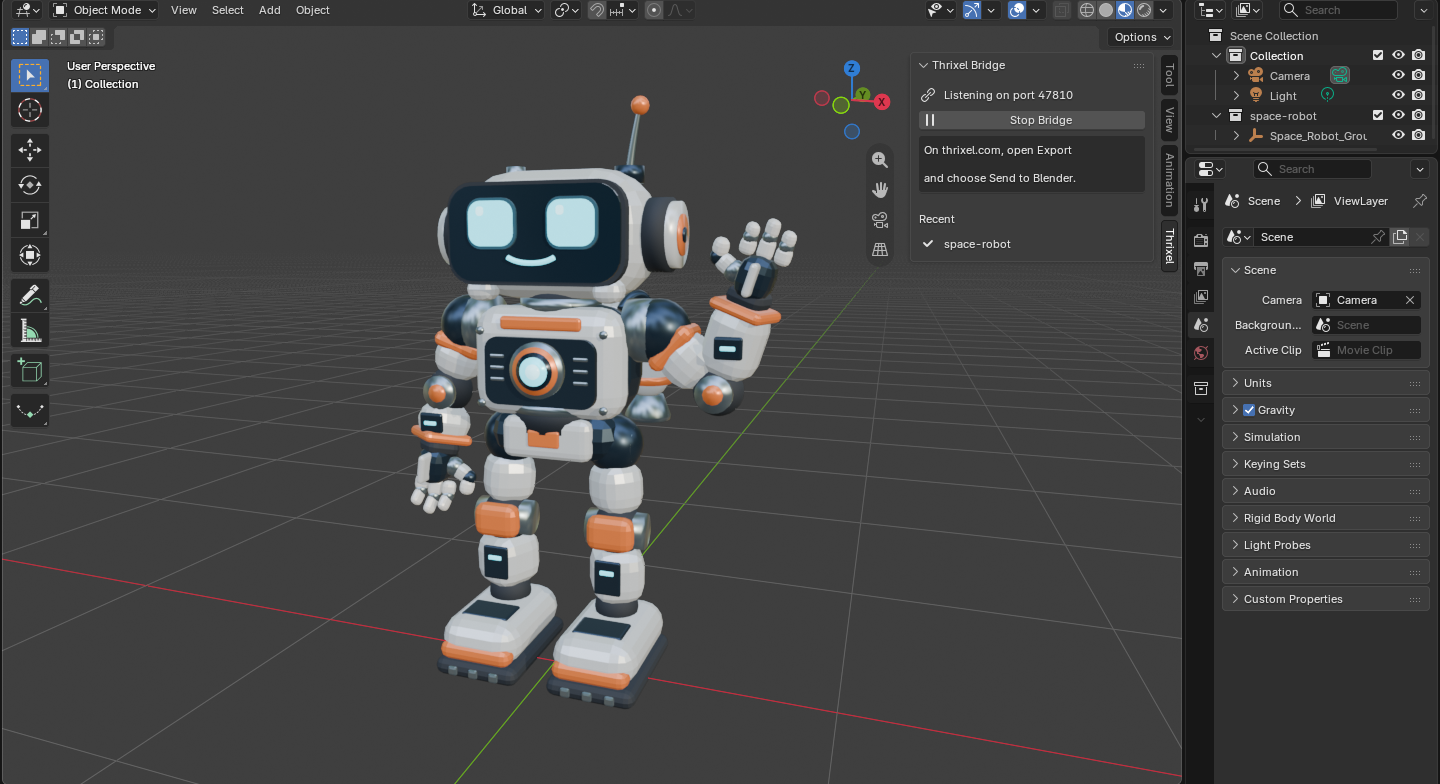
Thrixel Bridge is a free Blender add-on. With it installed, the Export panel on thrixel.com gets a Send to Blender button: one click and the model appears in the scene you have open, with no file to download, find and import by hand.
Requirements
- Blender 4.2 or newer, on Windows, macOS or Linux.
- Chrome, Edge or Safari on the same computer as Blender.
Install the add-on
-
Download thrixel-bridge-blender-0.1.0.zip. Leave it zipped.
Safari unzips downloads on its own, so you may get a thrixel-bridge-blender-0.1.0 folder instead. Right-click the folder in Finder and choose Compress to get a zip back. To keep future zips zipped, untick Open "safe" files after downloading in Safari > Settings > General.
-
Drag the zip onto the Blender window and click Install when asked.
Or, in Blender, open Edit > Preferences > Get Extensions, click the arrow in the top right corner, choose Install from Disk... and pick the zip.
-
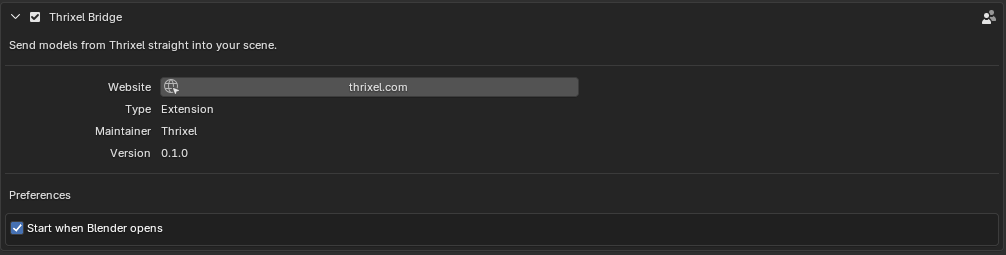
Under Edit > Preferences > Add-ons, check that Thrixel Bridge is ticked.
Turn on Online Access
Blender keeps add-ons offline until you allow it. If it asks, choose Allow Online Access, or turn it on later under Edit > Preferences > System > Network. The bridge cannot receive models without it.
Check that it is running
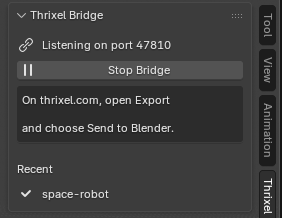
In the 3D Viewport, press N to open the sidebar and click the Thrixel tab. Listening on port 47810 means Blender is ready. The bridge starts on its own every time Blender opens; untick Start when Blender opens in the add-on's preferences to start it by hand with Start Bridge instead.
Send a model
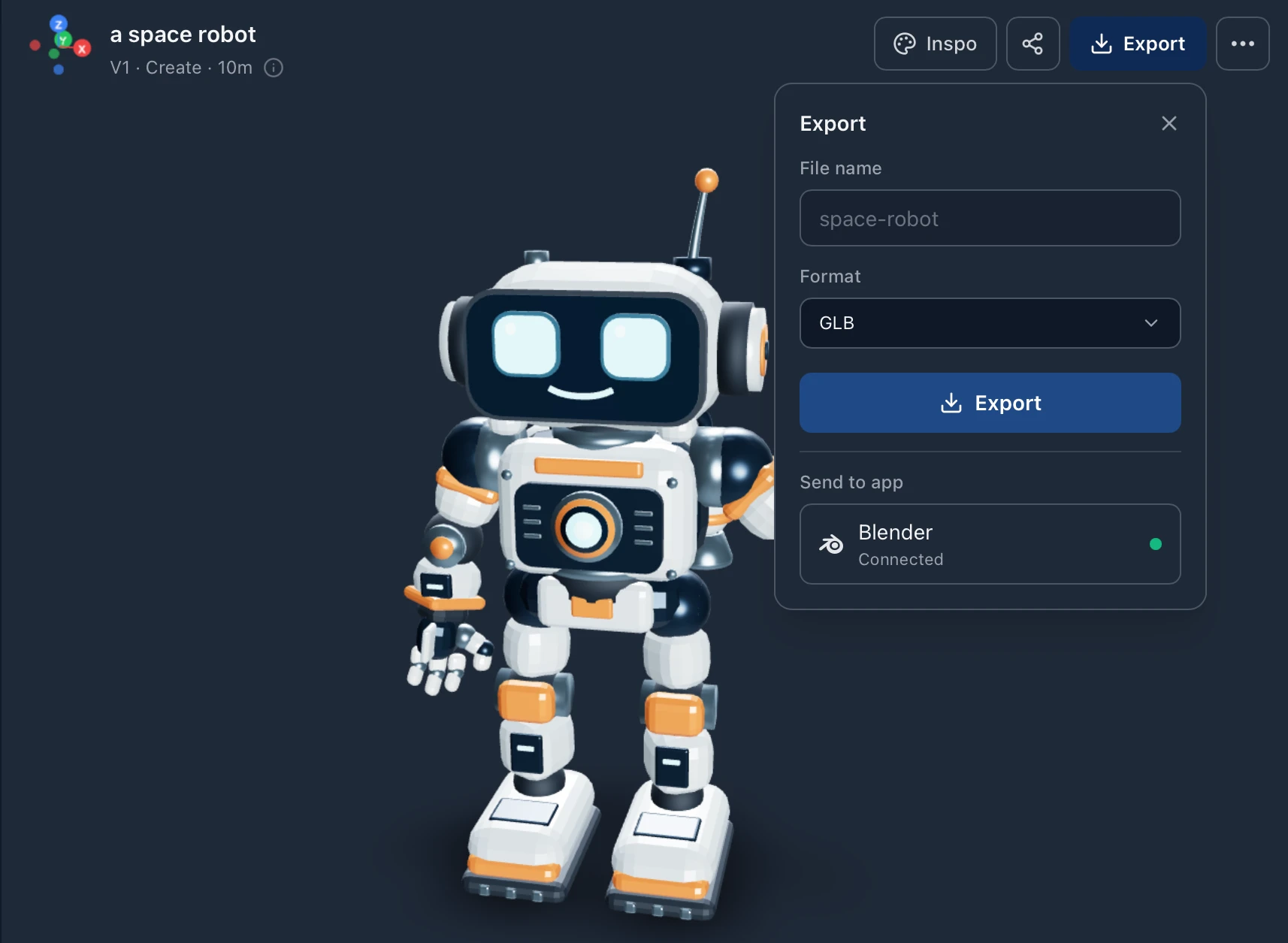
- Open a model on thrixel.com and click Export.
- Pick a Texture size and Quality if you want something other than the defaults. The model is sent as GLB with those settings.
- Under Send to app, click Blender. A green dot and Connected mean the website can see Blender.
The model is imported into a new collection named after it, in whichever scene is open, and the sidebar's Recent list shows it with a check mark. The website confirms with Added model name to Blender.
The first send in Chrome or Edge
Chrome and Edge ask once whether thrixel.com may access apps on your device. Click Allow: that is how the page reaches Blender. If you blocked it, open the site settings from the icon left of the address bar and allow Local network access, then reload. Safari does not ask.
Troubleshooting
| What you see | What to do |
|---|---|
| Not running under Send to app | Open Blender, check the Thrixel tab says Listening, then reopen Export. |
| Online access is off in the Thrixel tab | Turn on Edit > Preferences > System > Network > Allow Online Access, then click Start Bridge. |
| This add-on is out of date | Download the latest zip above and install it over the old one. |
| The model takes a while to arrive | A large model or a big texture size takes longer to download. The sidebar shows it as downloading until it is ready. |
| Two Blender windows are open | Each one runs its own bridge. The model goes to the first one the website finds. |
Privacy and security
The bridge only listens on your own computer (127.0.0.1, ports 47810 to 47819),
so nothing else on your network can reach it. It accepts requests from
thrixel.com only, and only downloads models from Thrixel's own servers. Nothing
is sent from Blender to Thrixel.
Update or remove
To update, install the new zip the same way; it replaces the old version. To remove the add-on, open Edit > Preferences > Add-ons, expand Thrixel Bridge and choose Uninstall from its menu.